
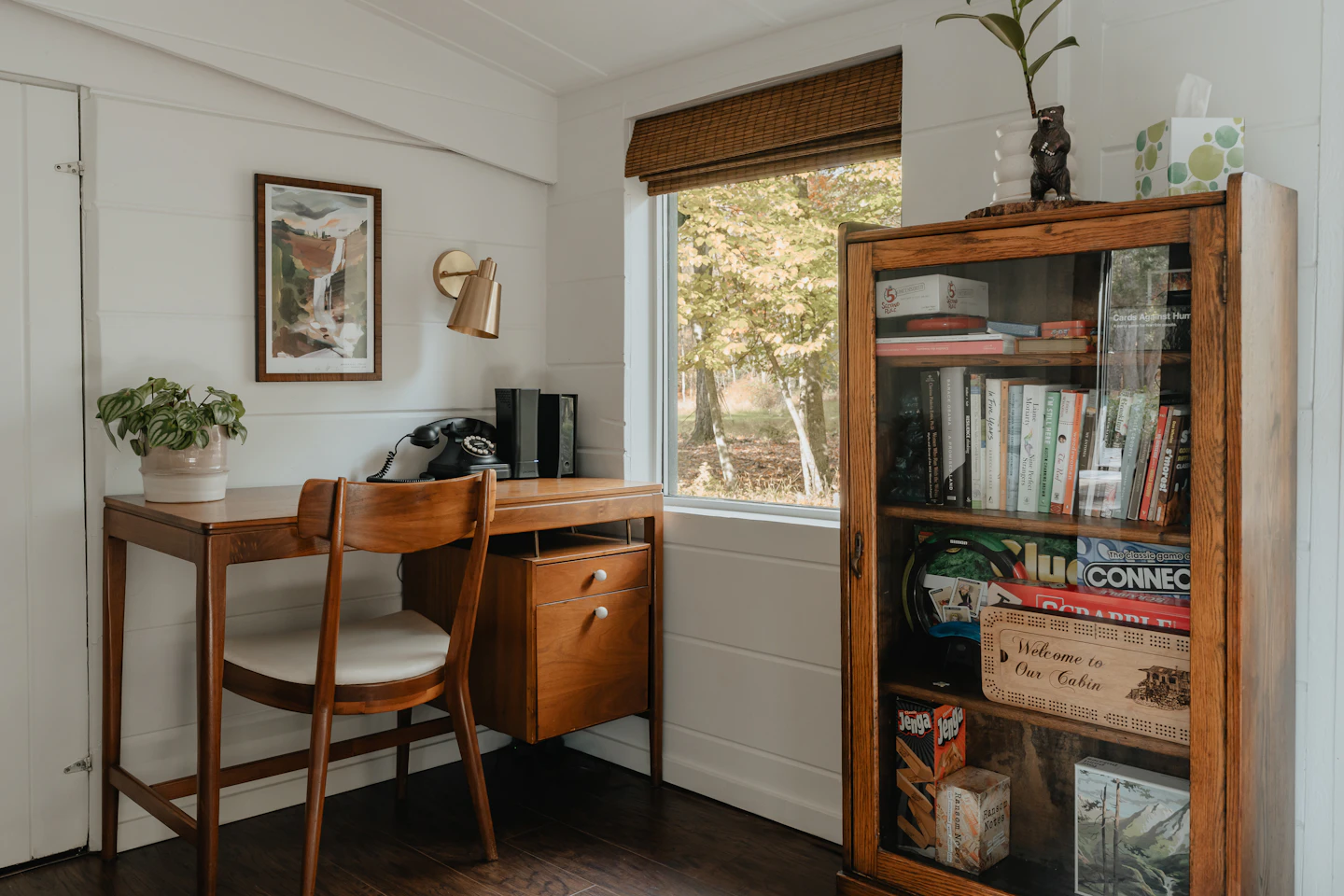
A better desk setup is not necessarily a bigger desk—or a shopping list. It is a thoughtful arrangement in which your screen, chair, lighting, tools, and storage work together. Whether you work from a bedroom corner, a small apartment, or a dedicated home office, these five desk setup ideas can make your workspace feel calmer and function better.
Quick answer: To improve a desk setup, position your screen for comfortable viewing, keep your keyboard and mouse close, control glare, route cables safely, and organize tools by frequency of use. Start by rearranging what you already own; only buy an accessory when it solves a specific, repeated problem.
This guide pairs practical workspace ergonomics with interior-design thinking: what to move first, what to measure, what to avoid, and which purchases—if any—might earn their place.
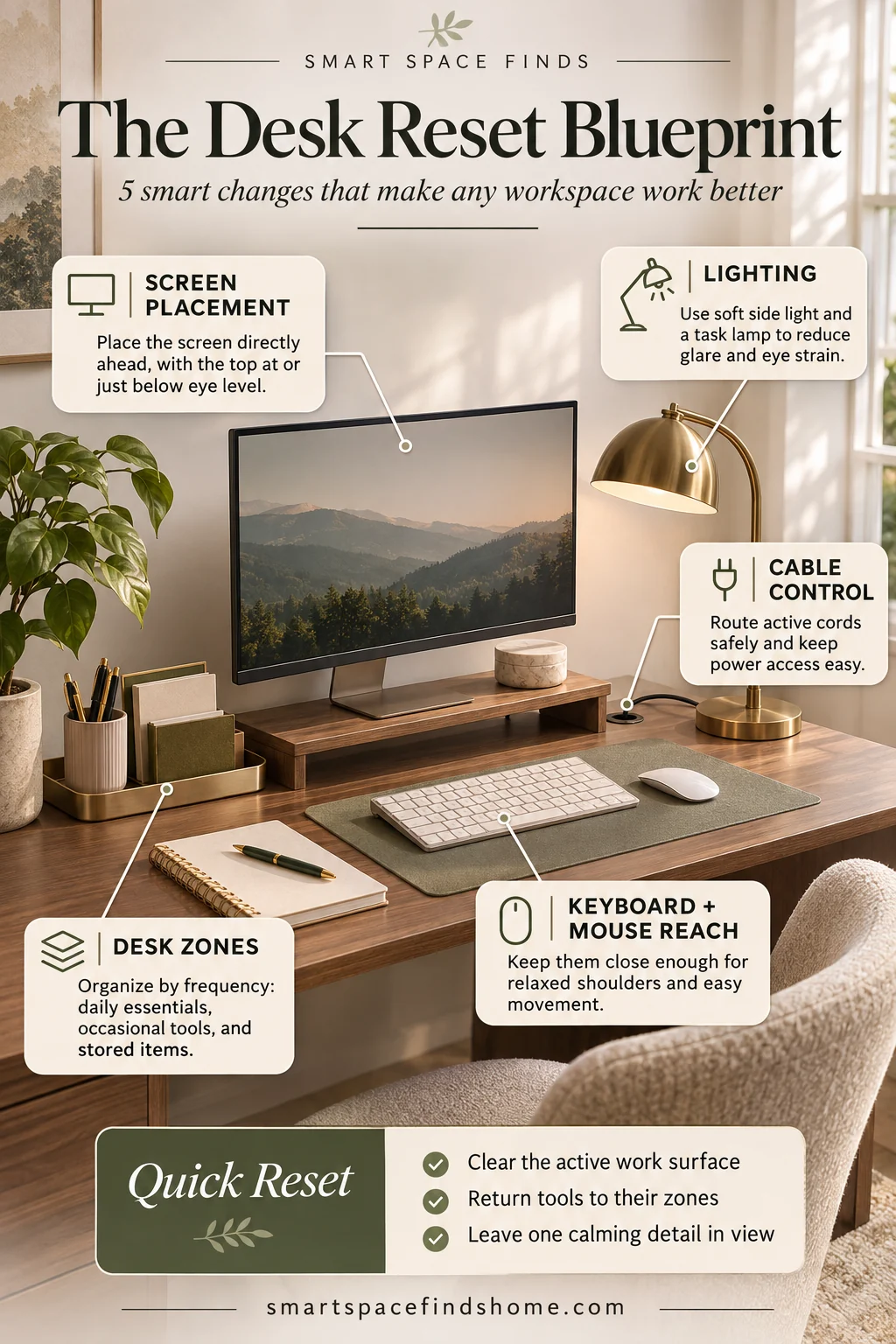
CHANGE 01 / COMFORT
Position the screen for the way you sit
Place your main monitor directly in front of you instead of turning your neck toward a screen positioned off to one side. A practical starting point is roughly an arm’s length away, with the top of the display at or slightly below eye level. Adjust for screen size, vision, and personal comfort rather than chasing one universal measurement.
If you use a laptop for extended periods, its attached screen and keyboard may force a compromise. Raising the laptop on a stable stand while using a separate keyboard and mouse can make placement more flexible. Avoid improvised unstable stacks that could tip over.
A desk can look perfectly balanced in a photograph and still be uncomfortable. Let your everyday posture—not visual symmetry—set the equipment positions. For detailed guidance, see the Mayo Clinic office ergonomics guide. Persistent pain warrants professional guidance.
THE WORKSPACE SOLUTION ATELIER / A
Elevate the View
Choose a stable laptop lift or an adjustable monitor mount only after checking desk depth, screen weight and mounting compatibility.
CHANGE 02 / ERGONOMICS
Give your hands and chair room to work
Bring your keyboard and mouse close enough that your elbows can stay near your torso, your shoulders remain relaxed, and your wrists are not held in an extreme bend. Keep the mouse beside the keyboard at a similar height. A decorative desk pad is optional; unstrained movement is not.
Next, look underneath the desk. Your knees and feet need clear space. If the chair is adjustable, set it to support your body and help you work with relaxed arms. Your feet should rest securely on the floor or on a stable footrest. If the desk is too high and the chair has to rise, foot support may become important.
Ergonomics is not a promise of perfect posture all day. The goal is a position you can use comfortably while continuing to move, shift position, and take breaks.
THE WORKSPACE SOLUTION ATELIER / B
The Comfort Edit
Different keyboards and mouse shapes suit different hand sizes, habits and available desk space. Start with comfortable reach before changing hardware.
CHANGE 03 / LIGHT
Design the lighting around the screen—not the photograph

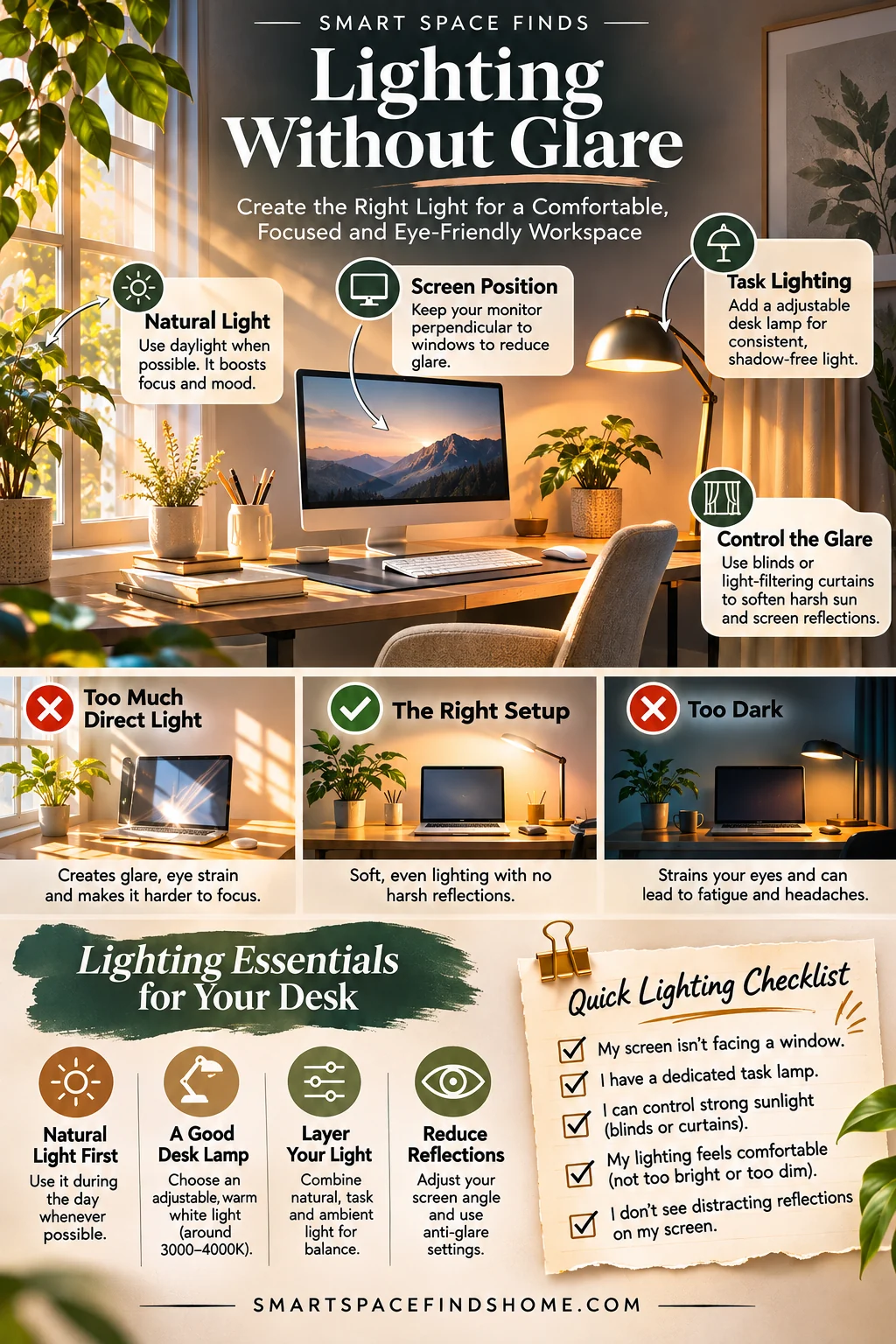
A desk beside a window can feel beautiful, but direct sunlight or a bright window behind the screen can create reflections and eye strain. If possible, orient the monitor so windows are more to the side than directly behind or in front of it. Test the arrangement in morning and afternoon light, not only when the room looks its best.
Add a small task lamp if you read notes, sketch, or handle paperwork. Aim the light onto the task rather than into your eyes or across the display. If you share your workspace with a living room or bedroom, a directional lamp can create a practical work zone without flooding the entire room.
THE WORKSPACE SOLUTION ATELIER / C
Light, Beautifully
Pick lighting based on screen reflections, reading tasks and how your monitor is shaped—not solely on how a setup looks in photos.
CHANGE 04 / ORDER
Move the cables out of your active work zone
A functional cable system is less about making every wire invisible and more about making the desktop easy to use and maintain. Start by unplugging and identifying unused cables. Group the remaining leads by destination, leaving enough slack for monitor or laptop adjustments. Use removable clips or a properly installed tray where appropriate.
Keep plugs, switches, and power strips accessible for inspection. Do not hide heat-producing adapters under fabrics, pinch cables against sharp edges, run cords where feet can snag them, or overload outlets. Follow each power strip’s manufacturer instructions and local electrical safety guidance.

THE WORKSPACE SOLUTION ATELIER / D
The Invisible Fix
Make cables safer and easier to identify. Keep power adapters ventilated and sockets accessible; never use concealment as a substitute for electrical safety.
CHANGE 05 / FLOW
Organize the desk by frequency, not by appearance
One of the most effective desk organization ideas is to place items according to how often you use them. A beautiful desk with your notebook behind the monitor and your charger on a distant shelf is not a functional desk. Build three simple zones instead.
Keyboard, mouse, current notes, daily tools. Keep comfortably within reach.
Headphones, charging cable, reference papers. Give each a predictable home.
Extra supplies, old files, occasional accessories. Move off the work surface.
On a narrow desk, think vertically—but carefully. A slim shelf, a wall-mounted organizer installed securely, or a monitor riser with usable clearance can help. Do not place heavy storage above seating areas unless its mounting is appropriate. If you rent, prioritize removable solutions that suit the surface and weight.
The goal is not an empty desk. It is a surface on which the next task can begin without moving five unrelated things first.
THE WORKSPACE SOLUTION ATELIER / E
Surface Intelligence
Choose storage that actually frees working space. Consider surface dimensions and cleaning needs before adding another organizer.
THE WORKSPACE EDIT / DECISION TOOL
What to fix first, what to buy later
Before spending money, work through the no-buy version of each adjustment. This prevents an attractive accessory from becoming another object that needs organizing.
| Problem | Try for free | Consider only if needed |
|---|---|---|
| Screen feels too low | Change seat and screen placement | Stable stand or adjustable arm |
| Hands feel cramped | Move keyboard and clear desk edge | Compact keyboard or appropriate tray |
| Glare on display | Rotate screen, adjust blinds | Directional task lamp |
| Cables everywhere | Remove extras and reroute | Cable clips or desk tray |
| No room for notes | Remove occasional items | Slim vertical storage |
If your space also functions as a living room or bedroom, a restrained color palette, one material accent, and a small amount of personal decoration can help the desk look intentional without compromising usability.
YOUR 30-MINUTE RESET / ACTION PLAN
A desk refresh you can actually finish
- Minutes 0–5: Photograph the current desk and write down your biggest frustration.
- Minutes 5–12: Adjust screen, keyboard, chair, and legroom.
- Minutes 12–18: Test glare and reposition the light.
- Minutes 18–24: Remove unused cords and move the active ones safely.
- Minutes 24–30: Return only essential items to the desktop, sorted by frequency of use.
Work at the revised desk for several ordinary sessions. Note whether reaching, searching, glare, or discomfort improved. Use similar lighting and the same camera viewpoint for honest before-and-after photos. Keep what works; reverse what does not.
THE WORKSTYLE EDIT / THREE REAL-LIFE SCENARIOS
The best desk setup depends on what you do there
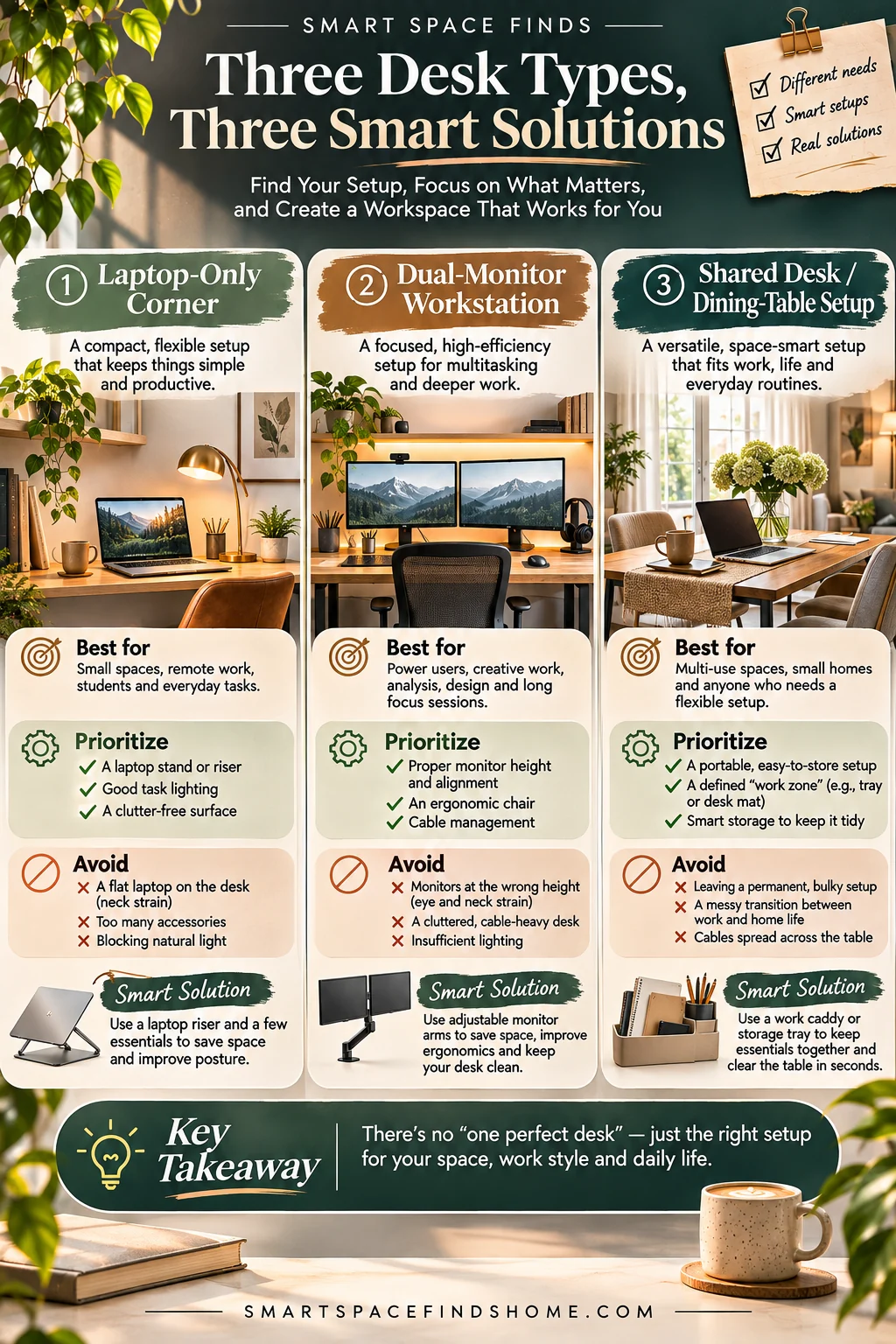
There is no single desk arrangement that works equally well for someone writing all day, someone reviewing two screens, and someone who closes their laptop so the dining table can become a dinner table again. Choose your layout by task before choosing your accessories.
The laptop-only corner
Prioritize: comfortable viewing, enough depth for hands and a clear place to park the laptop after work. If you work there for long periods, an external keyboard and mouse may allow better screen placement. A stable riser is useful only if it leaves room for the rest of your tasks.
Skip: bulky organizers that eat the space your hands need. A narrow tray or nearby shelf can hold your charger and notebook without turning the desk into a storage display.
The two-monitor workstation
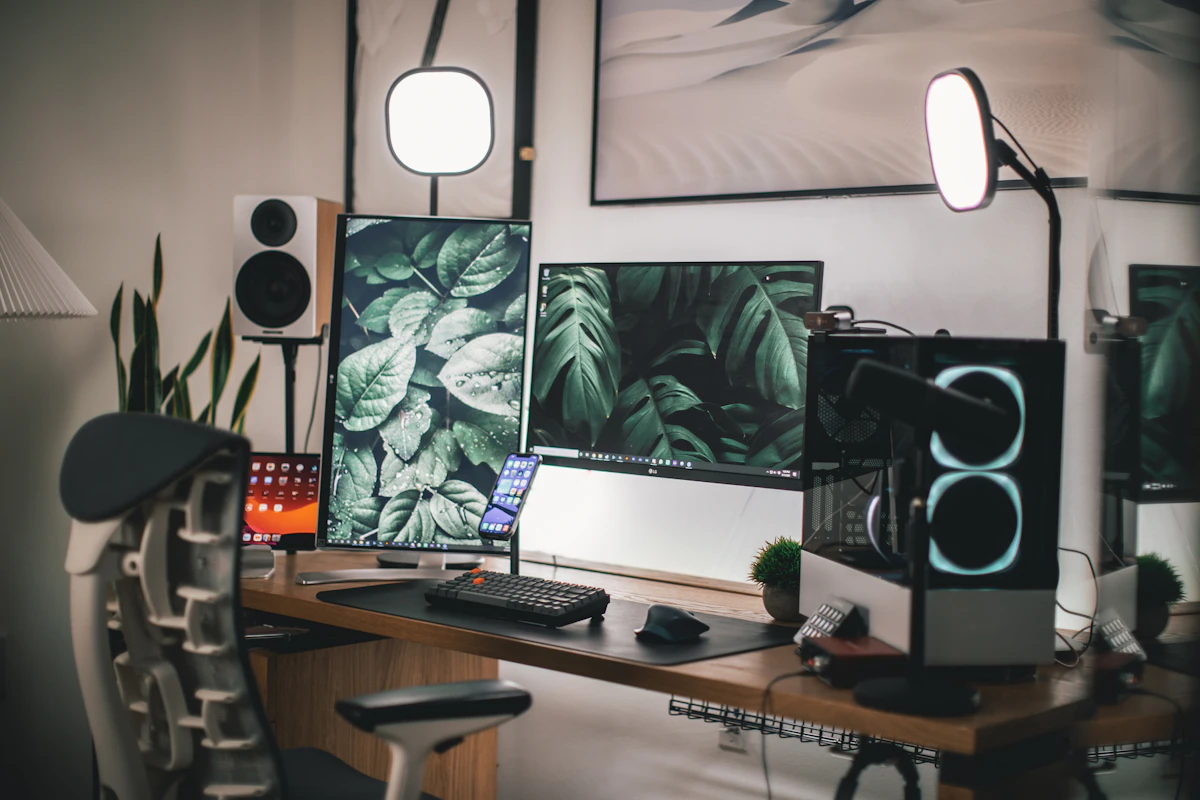
Prioritize: keeping the main screen directly ahead when one is used most, or positioning two equally used screens close together so turning is modest. Make sure neither monitor forces the keyboard too far forward or blocks daylight.
Skip: buying a monitor arm before checking your desk’s load rating, mounting clearance, edge shape, and the screens’ compatible mount specifications.
The shared desk or dining-table workspace
Prioritize: a repeatable setup you can assemble and remove. Give each person a labeled container for personal work items; use an easy-to-move lamp and a small cable pouch. Take a quick photo of a comfortable arrangement so you can recreate it.
Skip: permanent adhesive solutions on delicate finishes and accessories that require a full teardown every evening.
Design note: A workspace does not have to look empty to be intentional. Keep personality in the background or on a nearby shelf; preserve the part of the desk where your hands actually work.
THE WORKSPACE SOLUTION ATELIER / F
Work Anywhere
A compact portable kit can keep a shared work surface easy to set up and clear away. Confirm laptop compatibility before choosing stands or USB-C hubs.
THE FIT CHECK / BEFORE YOU BUY
Measure the space—not the shopping photo
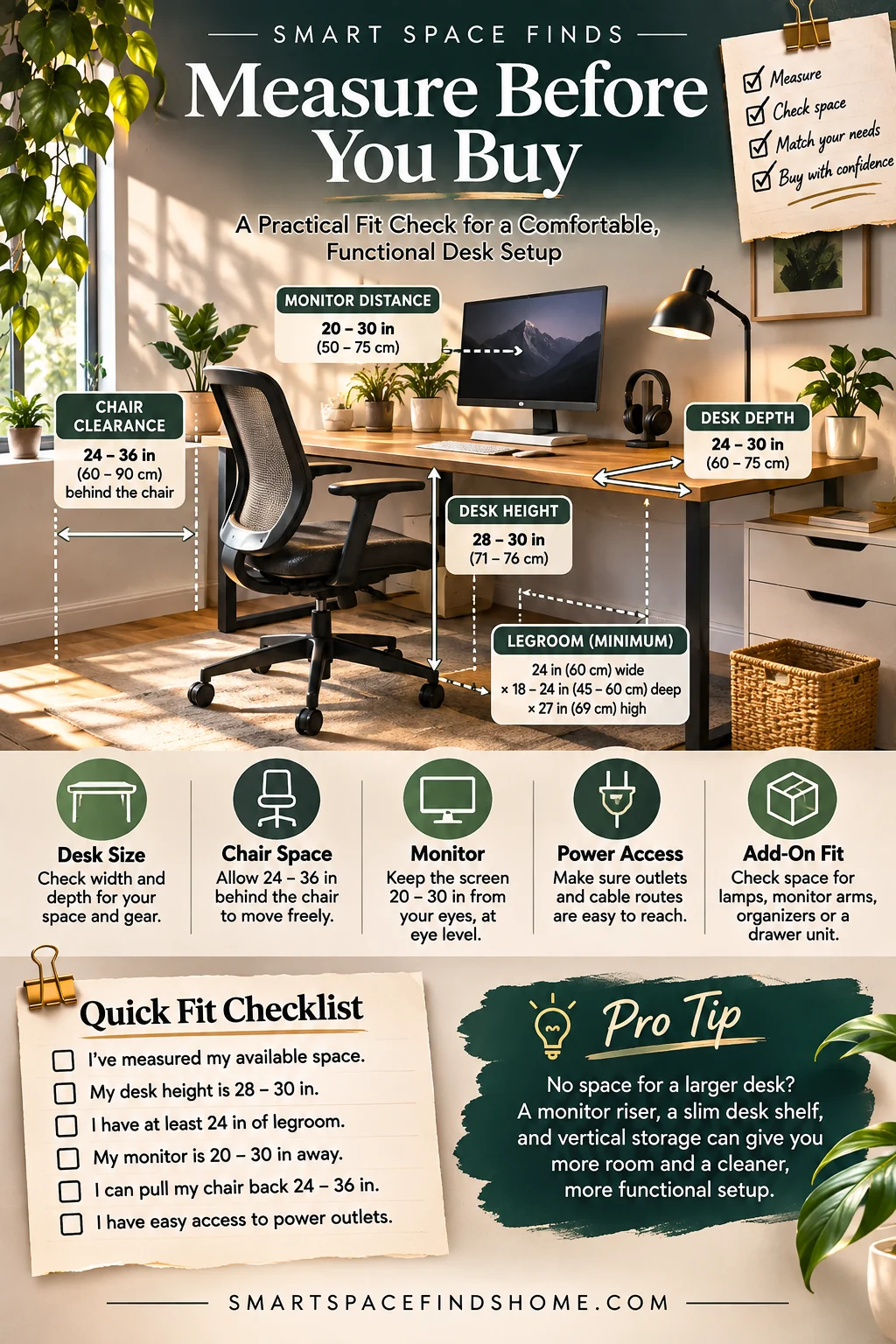
A product can be beautifully designed and completely wrong for your desk. Before ordering a monitor riser, keyboard tray, desk shelf, or cable tray, measure the usable surface, not just the outside width of the furniture.
- Working depth: Measure from the back wall or monitor base to the front edge. Keep room to view the screen comfortably and use your keyboard without crowding.
- Clear knee area: Check the space under the tabletop while sitting normally; make sure storage or a cable tray will not interfere.
- Chair movement: Check that you can pull the chair back and reach drawers without bumping furniture.
- Outlets and cables: Identify accessible power points and the actual length of the cable path.
- Mounting and stability: Check weight limits, clamps, wall materials, and assembly instructions before adding elevated storage or a monitor arm.
THE TROUBLESHOOTING DESK / QUICK FIXES
If your desk still feels wrong, start here
| What you notice | What to check first |
|---|---|
| You lean forward to read | Text scaling, monitor distance, and whether the backrest still supports you. |
| Your shoulders creep upward | Keyboard height, chair adjustment, mouse placement, and arm support. |
| Your feet dangle | Chair height and whether a stable footrest is appropriate. |
| The screen washes out at midday | Window angle, shades, overhead lighting, and screen reflections. |
| The desk looks cluttered by Tuesday | Whether active items have an easy home and occasional items are still on the desktop. |
| You keep disconnecting the wrong cable | Cable labels, accessible connectors, and safe slack. |
If numbness, tingling, recurring headaches, or persistent pain continues, seek appropriate professional advice rather than trying to solve everything with desk accessories.
THE LASTING EDIT / THE FIVE-MINUTE HABIT
Make the good setup easy to keep
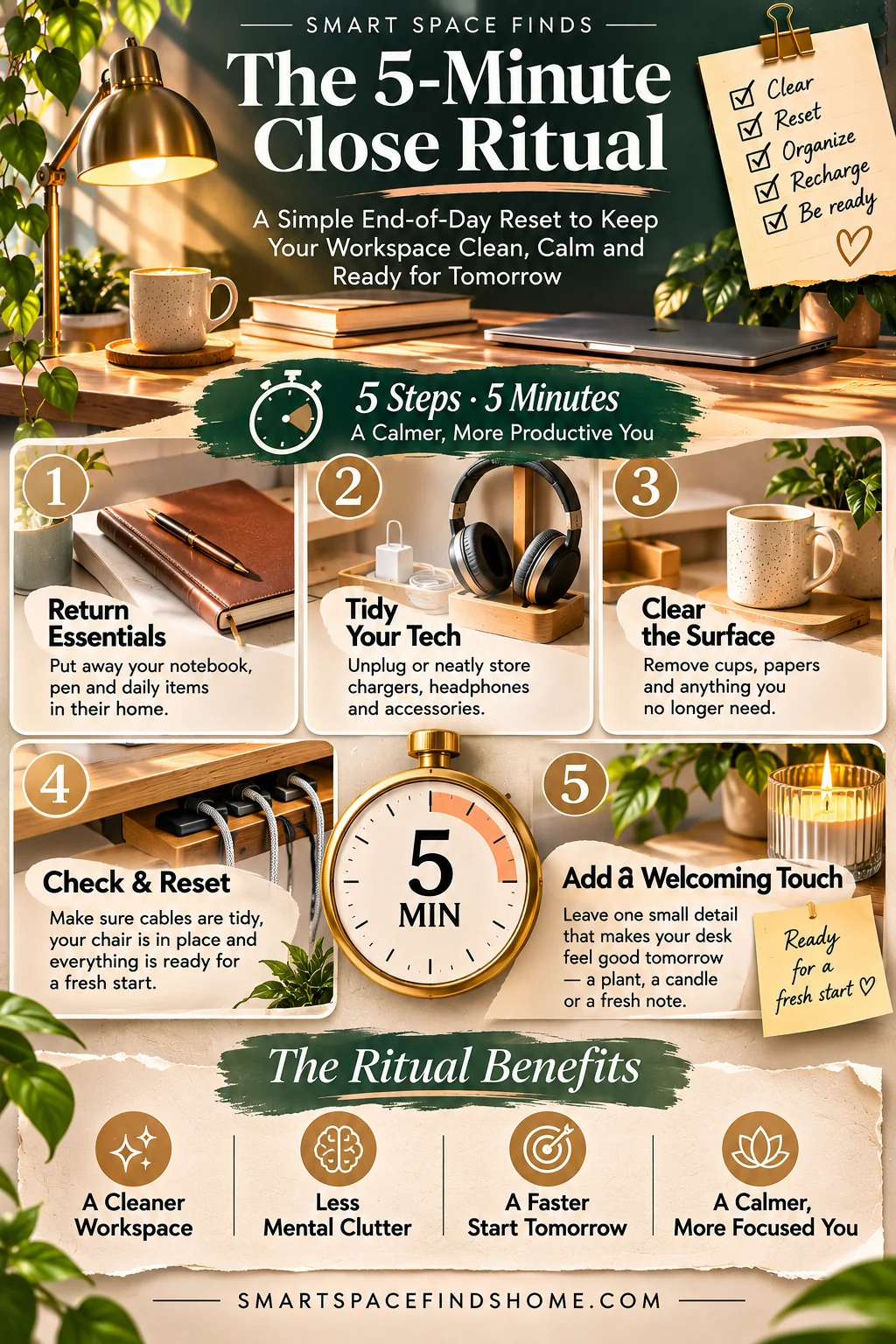
The most photogenic desk in the world is not a successful design if it takes twenty minutes to reset every night. Build a closing ritual that is shorter than the frustration it prevents.
THE 5-MINUTE CLOSE
- Put the active notebook and pen back in their dedicated place.
- Return chargers and headphones to their predictable home.
- Clear cups and loose papers from the work surface.
- Check that cables remain clear of chair wheels and foot traffic.
- Leave one small, welcoming detail visible for tomorrow.
That final detail matters: a favorite print, warm lamp, or plant can make you want to return. A functional workspace should feel like part of your home—not an equipment showroom.
SMART SPACE FINDS / ORIGINAL DESK FIELD TOOL
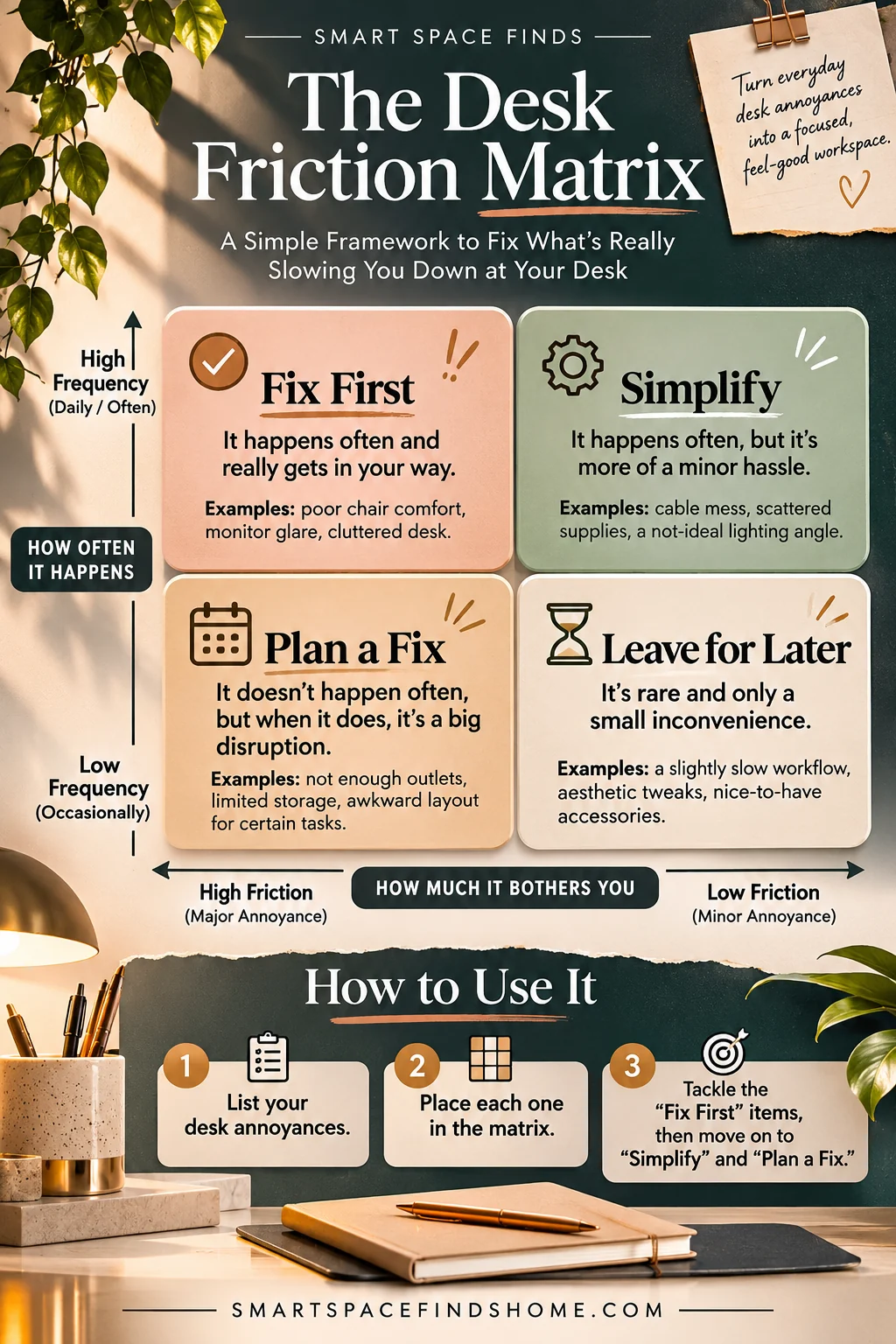
The Desk Friction Matrix: which problem deserves fixing first?
A tangled cable might be visually irritating, but a badly placed screen can interrupt every hour of work. Instead of choosing a project because it looks impressive on Pinterest, rank your own problems using two plain-language questions: How often does this happen? and How much does it interrupt me?
THE FOUR-QUADRANT FIELD GUIDE
Fix first. Examples: leaning toward the screen every hour, a mouse that is always out of reach.
Simplify the routine. Examples: searching briefly for a pen or unplugging a charger each day.
Plan one reliable fix. Examples: cables blocking access when moving furniture or a wobbly temporary stand.
Leave it for later. Examples: a spare notebook that rarely gets in the way.
This is an editorial prioritization exercise, not a validated health or ergonomic risk assessment. Safety hazards and persistent symptoms deserve attention regardless of quadrant.
- Write down three things that interrupt your work.
- Mark each as frequent or occasional, major or minor.
- Fix one high-friction issue using what you own.
- Repeat the same task for a few sessions before judging the result.
The no-buy / low-buy / worthwhile-upgrade rule
No-buy: move, rearrange, adjust, clean, label, or change a software setting. Low-buy: choose a small, specific item only after an adjustment cannot solve the problem. Worthwhile upgrade: consider larger equipment when it addresses a persistent limitation, fits the space, and matches your work habits. A premium workspace is an edited workspace, not an expensive one.
For an external safety cross-check, compare your setup with the OSHA computer workstation guide. Its ergonomic guidance is separate from this editorial decision tool.
FURTHER READING / SMART SPACE FINDS
Keep the whole room working harder
- Creative desk setup ideas for different work styles — explore personality and layout once the functional basics are in place.
- Ways to make a home feel less cluttered — extend the same approach beyond the desk.
- Small home organization solutions that save time — build systems that stay convenient.
FAQ / QUICK ANSWERS
Frequently asked desk setup questions
How do I improve my desk setup without buying anything?
Start by moving the monitor to a more comfortable position, bringing input devices closer, clearing legroom, adjusting lighting, removing unneeded cables, and sorting tools by frequency of use.
What belongs on a small work desk?
Only the items used for your current work: typically a computer, keyboard and mouse if needed, one notebook, a pen, and appropriate lighting. Keep occasionally used supplies nearby rather than permanently on the worktop.
Where should a monitor go on a desk?
A useful starting point is directly in front of you, around an arm’s length away, with the top at or slightly below eye level. Adjust based on screen size, prescription lenses, and comfort.
How can I make a desk look more aesthetic without clutter?
Use a consistent palette and one or two meaningful details, such as a framed print or plant, while protecting the active workspace. Avoid accessories that interfere with reach, light, or cleaning.
Are desk accessories worth buying?
Sometimes. A stand, external keyboard, lamp, or cable organizer can solve a specific recurring issue. Buy for a documented need and verified fit rather than for a matching desk-setup photograph.
THE FINAL EDIT
The best desk setup is not the one with the most accessories. It is the one that makes your next hour of work easier.
Start with the screen, your hands, and the light. Make room for what matters. Let style follow function—and give every change a real-world test.
Editorial reference: Ergonomic principles were cross-checked against Mayo Clinic and University of Toronto Environmental Health & Safety. The article is general information, not individualized medical advice.