
Everyday Intelligence / The smarter home
Your phone is more useful than you think.
Picture the kitchen counter at the end of a busy day: a receipt you need to keep, a package with tiny instructions, a shopping list you forgot to finish. The answer to each of these little frustrations might already be in your pocket.
These 15 useful things you can do with your phone help you organize your home, make better shopping decisions and spend less attention on repetitive tasks. Start with the tools you already have. You do not need a new phone or a collection of gadgets.
Try document scanning, recurring reminders and a quiet Focus window first. These solve common everyday problems without requiring an additional purchase. The exact menus depend on your device, operating system and region.
THE EVERYDAY TOOL FINDER
What do you need your phone to do?
Start with the problem, not the app.
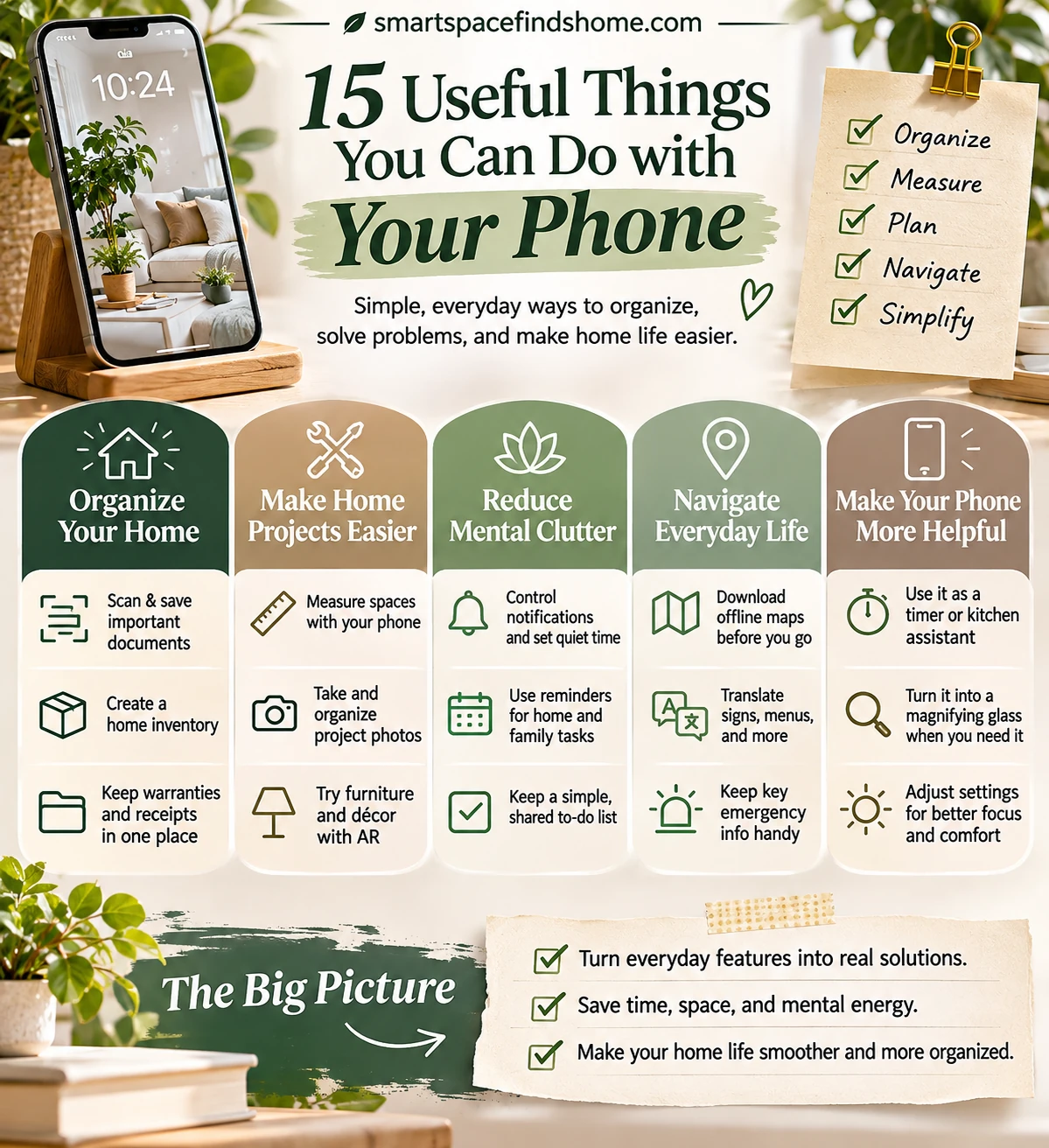
Turn your phone into a home organization tool
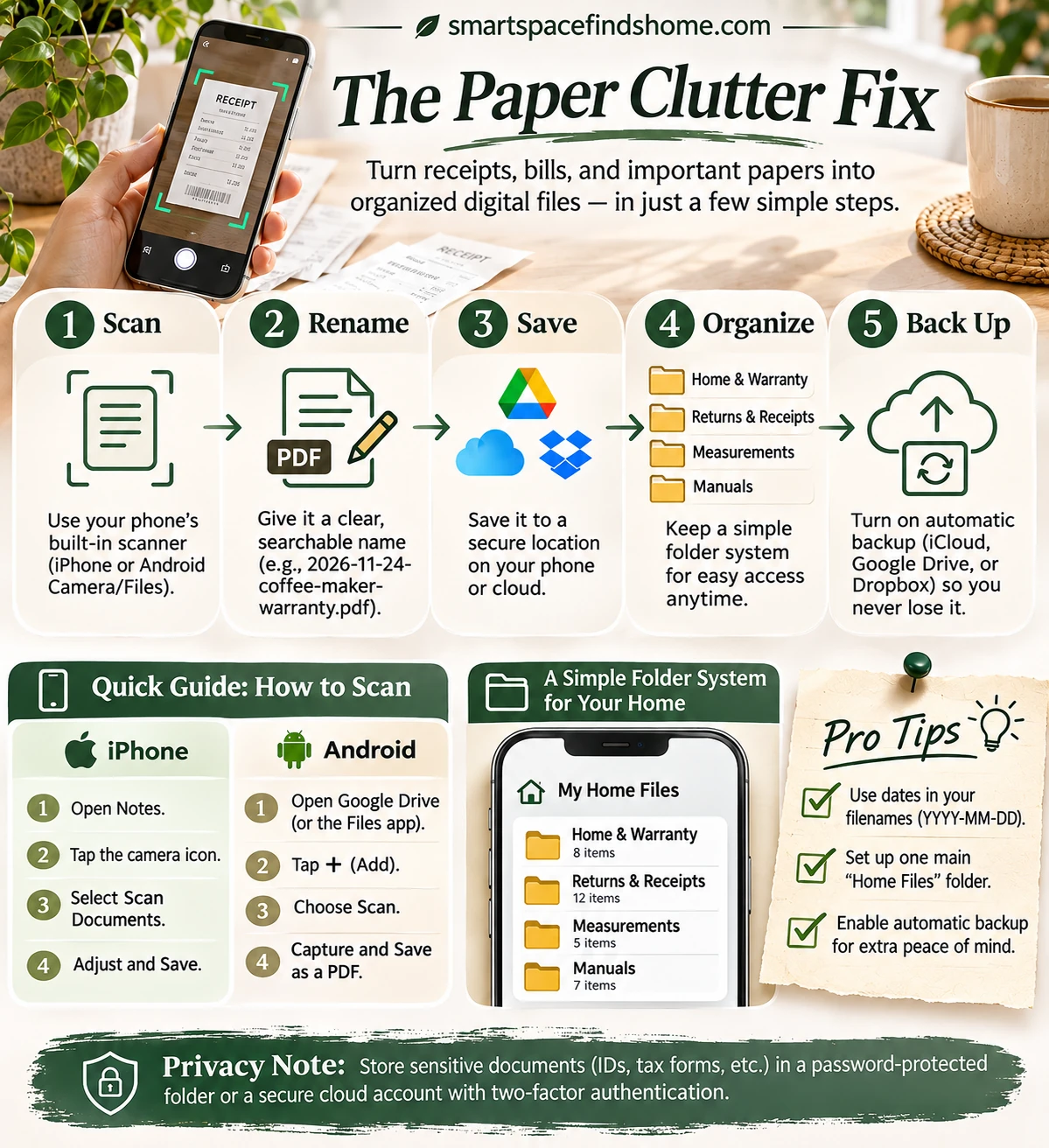
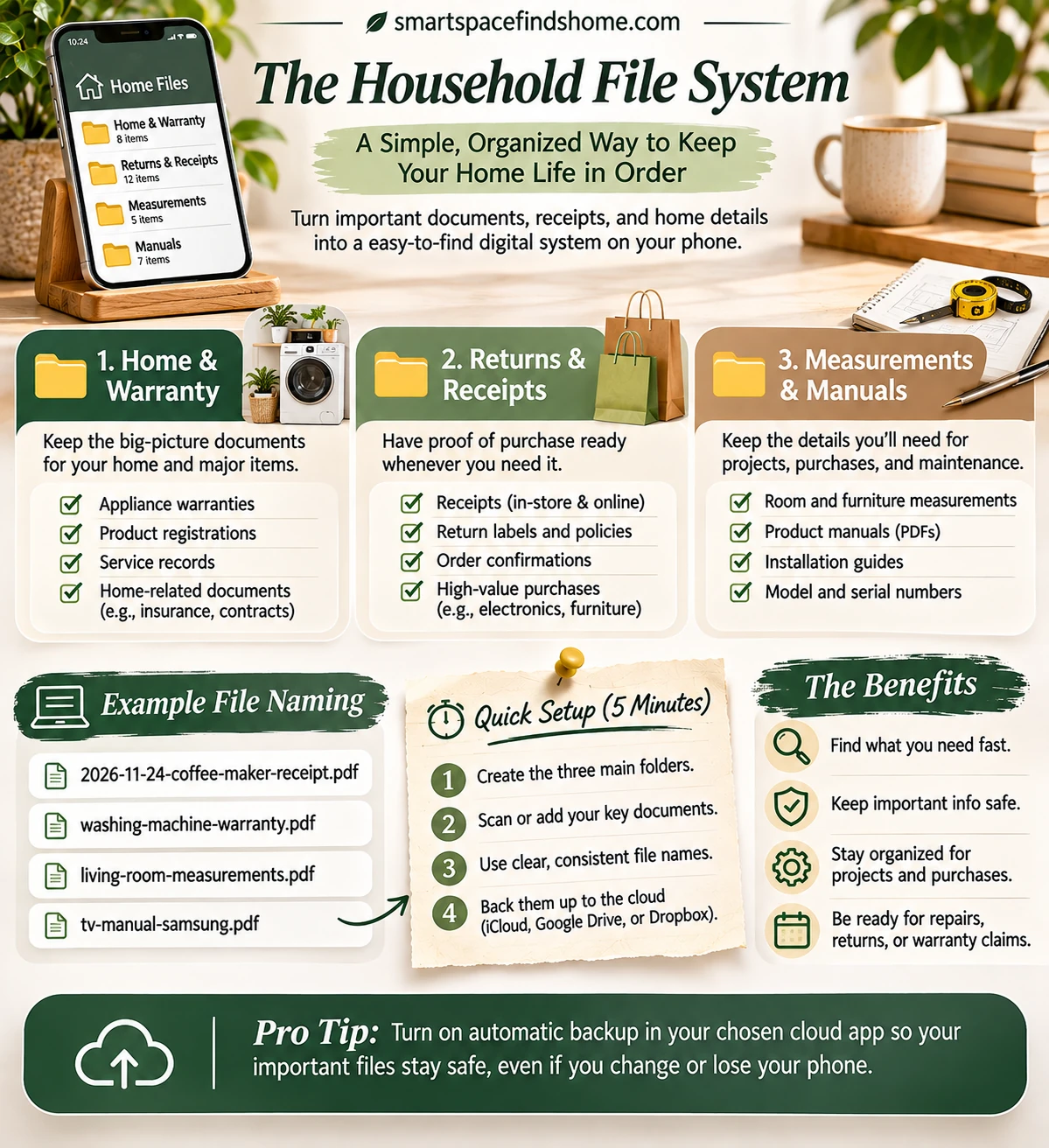
01. Scan receipts and paperwork
A receipt disappears just when you need to return something. Give paper a digital home before it joins the pile on your counter.
iPhone: In Notes, open a note, choose the attachment menu and Scan Documents. Review the corners and save the PDF.
Android: In Files by Google, choose Scan; Google Drive or supported camera apps also offer scanning. Review the scan, add any remaining pages and finish. In Files by Google, look in Downloads/Scanned for your PDF.
Try it at home: Create folders for warranties, household paperwork and returns. Name files with the date and merchant.
Good to know: Keep legally required originals and use trusted storage for sensitive documents.
02. Copy text from the real world
A model number on the back of a lamp is much easier to copy than to type.
iPhone: Use Live Text in Camera or Photos on a supported iPhone; select the text and copy it.
Android: Open Google Lens from a supported camera or Google app, select Text and copy.
Try it at home: Save appliance model numbers, paint names and recipe notes in a searchable household note.
Good to know: Check every digit before ordering a replacement part.
03. Create a home inventory
A drawer full of manuals is not the only way to remember what you own.
iPhone: Use Camera and Notes to record a room, item, model number and purchase date.
Android: Use Camera and a note app such as Keep to record the same details.
Try it at home: Photograph each room, then capture important serial numbers and receipts separately. Store a secure backup.
Good to know: Do not publish photos containing addresses, keys or financial information.
SMART SPACE FINDS / OPTIONAL UPGRADES
The Digital Home Office
Start with what you own. Choose an accessory only if it solves a recurring problem.
As an Amazon Associate I earn from qualifying purchases. Affiliate links may earn us a commission.
PHOTOMYNE Flexible Phone Holder
Hold your phone steady when digitizing photos or paperwork.
RISEOFLE 71-inch Phone Tripod
Stabilize your camera for household inventory photos.
Amazon Basics Manila File Folders, 100-Pack
Keep paper originals that still need to be retained.
Amazon Basics Hanging File Folders, 25-Pack
Create a physical filing system alongside digital records.
YSAGi Leather Desk Mat, Black
Define a tidy surface for paperwork and scanning.
Check current availability, compatibility and safety notices before purchasing.
Make your home projects easier
04. Estimate furniture dimensions
The beautiful console table is not a bargain if it blocks your doorway.
iPhone: Open Measure on a supported iPhone, follow the onscreen prompts and mark the endpoints.
Android: Use an AR measuring app only if your phone supports it; otherwise keep measurements in a note.
Try it at home: Record the width, depth and height of the space plus door swing and delivery clearance.
Good to know: Confirm all purchasing, cutting and installation dimensions with a physical tape measure.
05. Check whether a picture is level
A slightly tilted frame can make an otherwise calm room feel unfinished.
iPhone: Open Measure and select Level; rest the phone against a suitable straight surface.
Android: Some Android phones provide a level through a toolbox app; otherwise choose a reputable compatible level app.
Try it at home: Use the reading as a preliminary check when arranging lightweight decor.
Good to know: A protruding camera or case can distort readings. Use a real spirit level for mounting and safety-critical work.
06. Research an object with your camera
You see a woven basket you like but cannot remember its name.
iPhone: Use Google Lens in the Google app or supported visual search features.
Android: Open Google Lens or Circle to Search on supported devices.
Try it at home: Search by shape, material and function; compare dimensions, reviews and return policies before buying.
Good to know: Visual matches may be wrong or sponsored. Never assume identical appearance means identical quality.
Before you buy that piece of furniture
- Record the available floor space, not just the wall width.
- Measure the narrowest delivery doorway and any tight turns.
- Allow space for drawers, doors, cables and walking routes.
- Confirm every critical measurement with a physical tape measure.
SMART SPACE FINDS / OPTIONAL UPGRADES
The Smart Home Toolkit
Start with what you own. Choose an accessory only if it solves a recurring problem.
As an Amazon Associate I earn from qualifying purchases. Affiliate links may earn us a commission.
STANLEY FATMAX 25-Foot Tape Measure
Confirm furniture dimensions with a physical tape.
DURATECH 25FT Magnetic Tape Measure
An alternative for measuring household spaces.
Franklin Sensors 12-Inch Light Level
Check alignment when arranging frames and shelves.
LEXIVON 2-in-1 Digital Laser Tape Measure
Compare longer indoor distances; follow the device instructions.
NEIKO 01407A Digital Caliper
Measure small hardware and replacement components.
Mr. Pen 25FT Retractable Tape Measure
A simple physical measuring tool for everyday projects.
Check current availability, compatibility and safety notices before purchasing.
Reduce everyday mental clutter
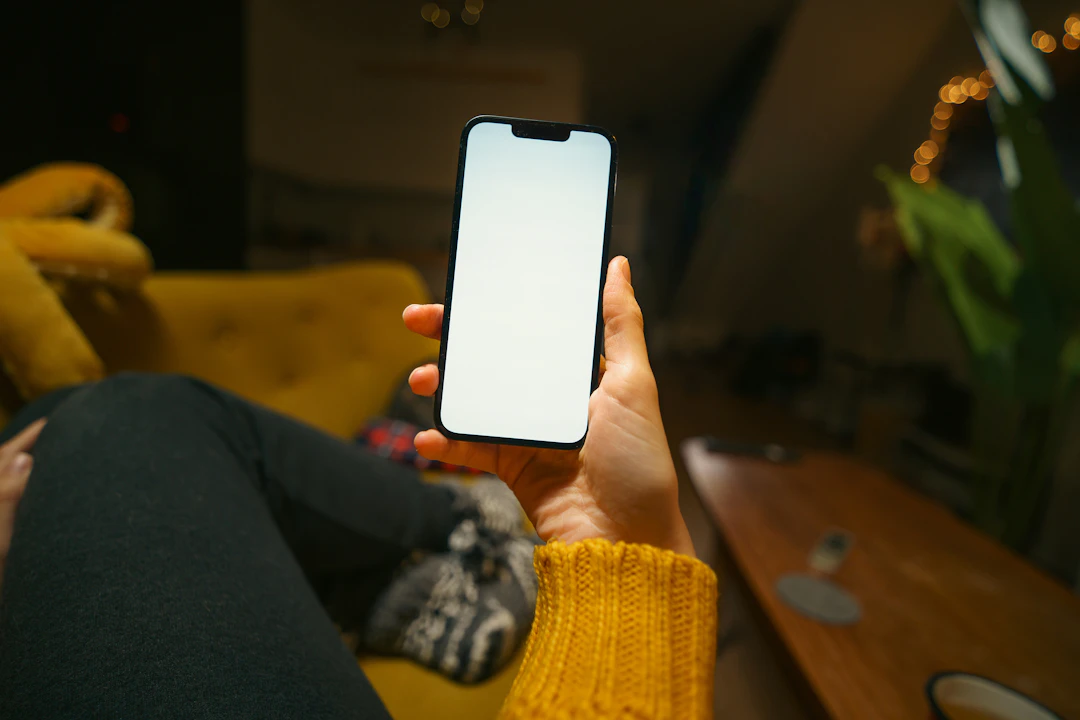
07. Let reminders carry routine tasks
You remember to replace a filter at exactly the wrong moment: while doing something else.
iPhone: Create a reminder in Reminders, set a date and choose a repeat interval.
Android: Use Google Tasks or your device reminder app to create a dated recurring task.
Try it at home: Set a single recurring reminder for filter checks, returns or laundry supplies. Use a specific action verb.
Good to know: Back up essential deadlines in a calendar and verify notification permissions.
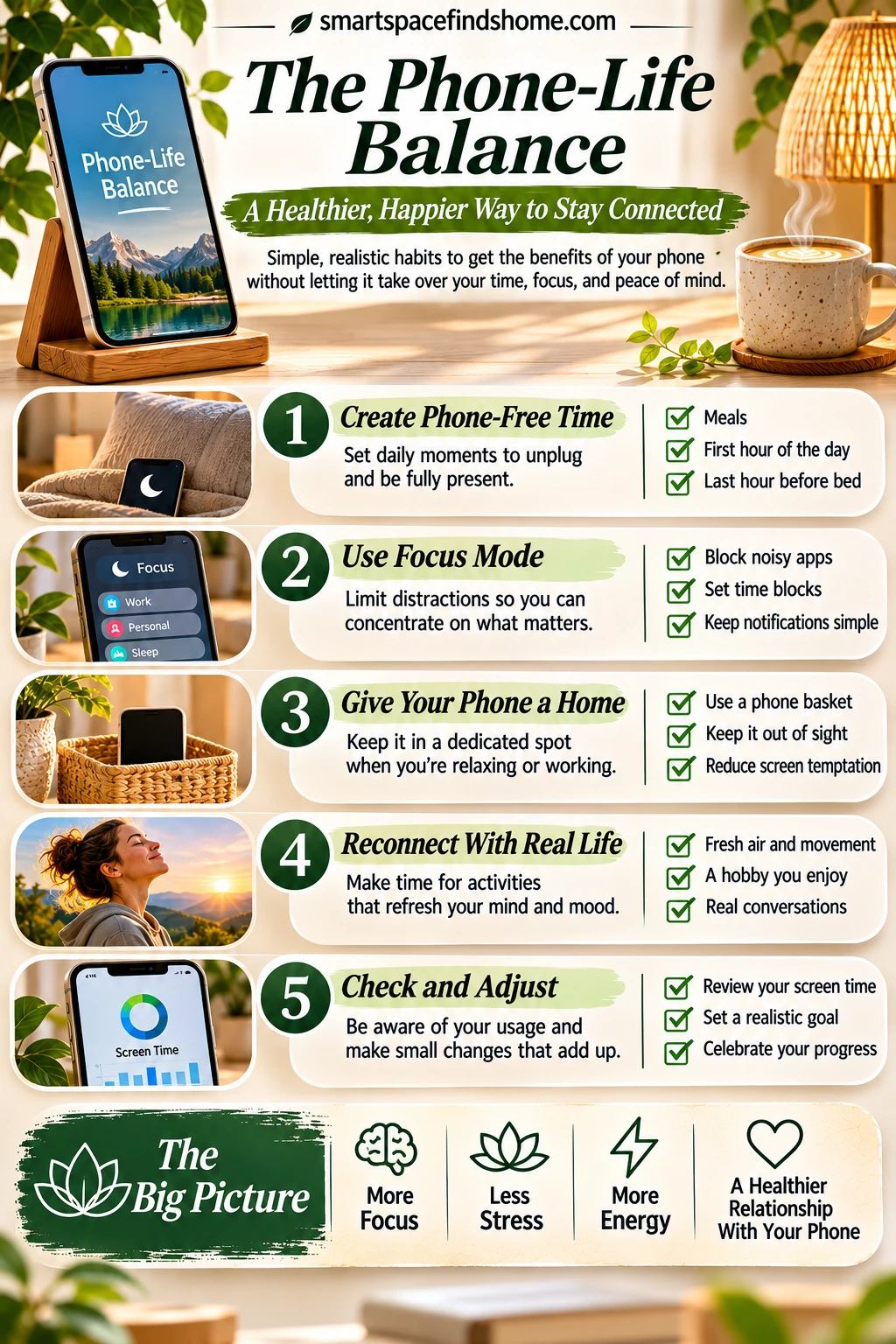
08. Create a quiet window
You sit down to plan dinner and end up answering notifications for twenty minutes.
iPhone: Open Settings, Focus, and create a mode with allowed contacts and apps.
Android: Open Settings, Digital Wellbeing, Focus mode, and select distracting apps to pause where available.
Try it at home: Start with a short, repeatable window for cooking, reading or paperwork.
Good to know: Test urgent contact exceptions; Android Focus mode and Do Not Disturb are not identical.
09. Stop typing the same phrases
Repeatedly typing your email or delivery instructions wastes attention.
iPhone: Use Settings, General, Keyboard, Text Replacement.
Android: Look for Personal dictionary or text shortcuts in your keyboard settings; availability varies.
Try it at home: Create memorable shortcuts for non-sensitive phrases you type frequently.
Good to know: Never store passwords, card numbers or private access codes in text shortcuts.
Navigate everyday life with less effort
10. Translate everyday signs and labels
A laundry label or unfamiliar menu should not turn into a guessing game.
iPhone: Use the camera translation option in Translate or a compatible translation app.
Android: Use Google Translate camera mode on supported devices.
Try it at home: Capture the relevant phrase in good light and compare the translation with context.
Good to know: Machine translation can be inaccurate, especially for allergens, medication and safety instructions.
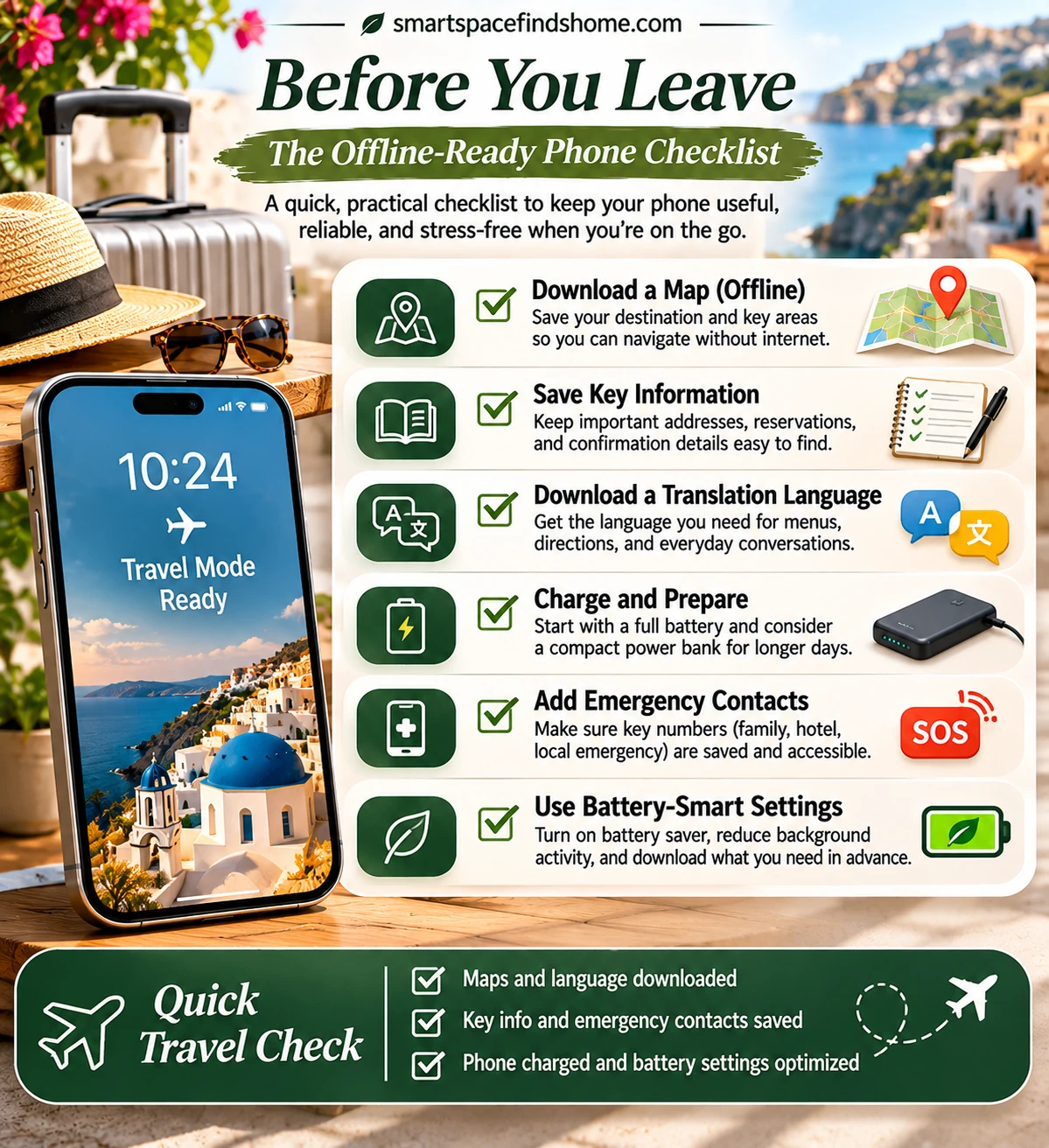
11. Keep a map available offline
A weak signal can make a simple errand unexpectedly stressful.
iPhone: In supported regions, download an offline area in Apple Maps before leaving.
Android: In Google Maps, open your profile menu, Offline maps, and download the relevant area.
Try it at home: Download the neighborhood before traveling and check that the route is covered.
Good to know: Google Maps offline navigation supports driving within the downloaded area, but not walking, cycling or transit directions. Live traffic and alternate routes are unavailable. Apple Maps availability and supported modes vary by region.
12. Share guest Wi-Fi without reciting a password
A visitor arrives and the router password is buried behind furniture.
iPhone: Use Apple’s Wi-Fi password sharing with compatible nearby Apple devices, or a QR sharing option where supported.
Android: Open the connected Wi-Fi network settings and look for Share or QR code.
Try it at home: Use a guest network if your router supports one, then share access with trusted visitors.
Good to know: Treat the QR code like the password itself; avoid posting it publicly.
SMART SPACE FINDS / OPTIONAL UPGRADES
The Travel-Ready Phone Kit
Start with what you own. Choose an accessory only if it solves a recurring problem.
As an Amazon Associate I earn from qualifying purchases. Affiliate links may earn us a commission.
BAGSMART Compact Travel Electronics Organizer
Keep cables and small charging accessories together.
BAGSMART Large Electronics Organizer
Extra space for a larger travel accessory kit.
ANDERY Foldable Magnetic Car Phone Mount
Position a compatible phone without obstructing visibility or controls.
RORRY CharmGo 5,000mAh Portable Charger
Compact backup power; check connector and model compatibility.
Check current availability, compatibility and safety notices before purchasing.
Make your phone more helpful when it matters
13. Read fine print with magnification
Tiny print on packaging can make an ordinary task unnecessarily difficult.
iPhone: Open Magnifier and adjust zoom, light or freeze-frame as needed.
Android: Use camera zoom or a compatible magnifier app; screen magnification is a separate accessibility feature.
Try it at home: Set a shortcut and try it on a household care label in good light.
Good to know: Do not guess unclear medical, electrical or safety instructions.
14. Prepare emergency information
Your phone can hold information that may be useful when you cannot explain it yourself.
iPhone: In Health, open your profile and Medical ID. Review emergency contacts and lock-screen visibility.
Android: Look for Safety & emergency in Settings or the Personal Safety app on compatible phones.
Try it at home: Review the information and decide what you are comfortable making visible while locked.
Good to know: Availability varies. This is not a substitute for contacting emergency services or carrying necessary medical identification.
15. Run a kitchen timer without extra clutter
A busy evening is easier when you do not have to keep every cooking task in your head.
iPhone: Open Clock and set a labeled timer if supported.
Android: Open Clock and set a timer; multiple timers and labels vary by app.
Try it at home: Label timers by task, such as pasta or laundry, and keep the phone away from heat and water.
Good to know: A timer is a reminder, not a substitute for supervising cooking.
SMART SPACE FINDS / OPTIONAL UPGRADES
The Practical Phone Care Kit
Start with what you own. Choose an accessory only if it solves a recurring problem.
As an Amazon Associate I earn from qualifying purchases. Affiliate links may earn us a commission.
MagicFiber Microfiber Cleaning Cloths, 6-Pack
Remove fingerprints using device-approved cleaning methods.
MagicFiber Microfiber Cleaning Cloths, 2-Pack
Keep a compact cloth kit near your phone.
MagicFiber Microfiber Cleaning Cloths, 30-Pack
Stock reusable cloths for household electronics.
10X LED Magnifying Glass with Stand
A dedicated alternative for longer close-up reading tasks.
Check current availability, compatibility and safety notices before purchasing.
When useful smartphone features do not work
Not every menu looks the same. Before installing another app or buying a new device, try these simple checks.
Search Settings or your app list using the feature name. Check the device maker’s help guide and whether your hardware supports it.
Clean the lens, use even light, flatten the paper and check the PDF at full size.
Check notifications, scheduled time, time zone and relevant battery restrictions. Create a test reminder.
Confirm the downloaded area, storage space and available route type before leaving.
Remove a bulky case if using a level, follow calibration prompts and verify with a physical tool.
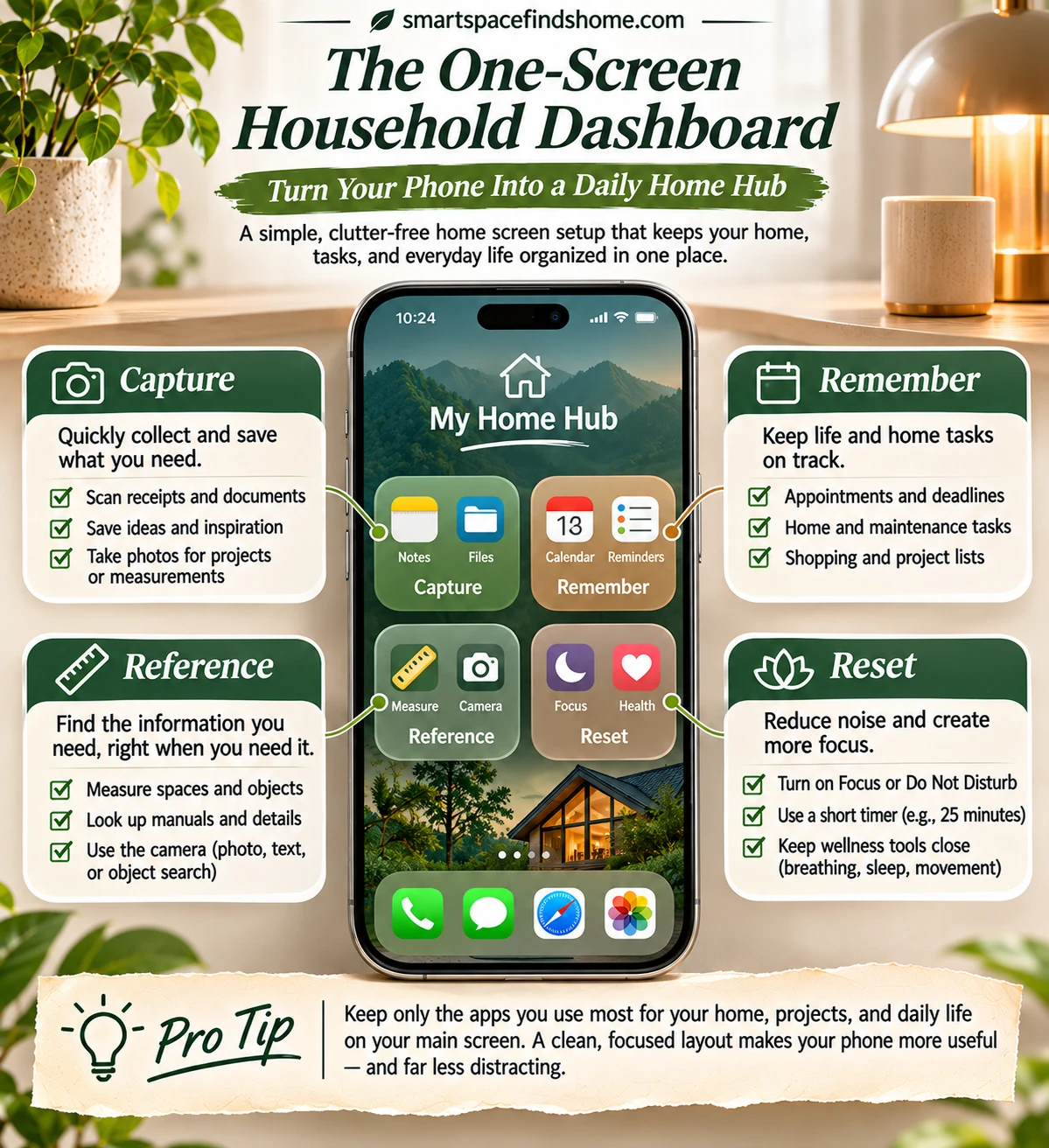
Build a one-screen household dashboard
Imagine opening your phone on a Saturday morning and finding everything you need for the day in one place, instead of searching through messages, screenshots and apps. You can build a simple version without buying anything.
THE SMART SPACE FINDS HOME SCREEN EDIT
Four tools. One calmer screen.
Camera + document scanner
Reminders + shared shopping list
Household notes + measurements
Clock + Focus controls
On iPhone, arrange app icons or supported widgets on a dedicated Home Screen page. On Android, use a folder or widgets supported by your launcher. Keep sensitive records out of widgets visible to others.
SMART SPACE FINDS / OPTIONAL UPGRADES
The Everyday Phone Station
Start with what you own. Choose an accessory only if it solves a recurring problem.
As an Amazon Associate I earn from qualifying purchases. Affiliate links may earn us a commission.
Lamicall Adjustable Foldable Phone Stand
Create a dedicated hands-free viewing spot.
PopSockets Adhesive Phone Grip, Black
Improve grip with a compatible phone or case.
GETPALS 3-in-1 Wireless Charging Station
Organize charging for compatible devices; check model support.
OCTOBUDDY Silicone Phone Mount, Chalk Pink
Use on compatible clean surfaces; avoid risky mounting locations.
HAVE ME TD Cable Zip Ties, 400-Pack
Bundle loose cables without overtightening.
Check current availability, compatibility and safety notices before purchasing.
The 10-minute phone reset
Capture one piece of information, give it a predictable home, automate one recurring task and verify the result. Repeat only when it saves effort.
A seven-day experiment: make your phone useful again
Choose just one recurring frustration each day. If the feature adds effort rather than removing it, drop it.
Monday — Scan a receipt and find it again.
Tuesday — Save one appliance model number.
Wednesday — Record the dimensions of a space you want to improve.
Thursday — Set a test reminder for a household task.
Friday — Try a quiet window while cooking or reading.
Saturday — Download a map before an errand.
Sunday — Review what actually helped and keep only those tools.
Should you buy a phone accessory?
Try the free feature first. If the same physical problem keeps recurring, a stable phone stand can make hands-free viewing easier; a compatible charger can make a dedicated charging spot more convenient; a physical tape measure is a better choice for precise furniture dimensions. Check compatibility and safety certifications before spending money.
SMART SPACE FINDS / OPTIONAL UPGRADES
The Always-Ready Charging Kit
Start with what you own. Choose an accessory only if it solves a recurring problem.
As an Amazon Associate I earn from qualifying purchases. Affiliate links may earn us a commission.
Anker 20W USB-C Charger, 2-Pack with Cables
Set up convenient charging points for compatible devices.
Apple 20W USB-C Compact Power Adapter
A compact wall adapter for compatible charging cables.
etguuds USB-A to USB-C Cables, 2-Pack
Connect compatible USB-C devices to USB-A power sources.
NITECORE NB10000 Gen 3 Power Bank
Lightweight 10,000mAh backup power with dual USB-C ports; check compatibility and availability.
Anker Nano Magnetic 5,000mAh Power Bank
Portable magnetic charging; verify compatibility and model.
Anker MagGo 2 Pro 10,000mAh Power Bank
Backup power for compatible phones; check current safety notices.
Check current availability, compatibility and safety notices before purchasing.
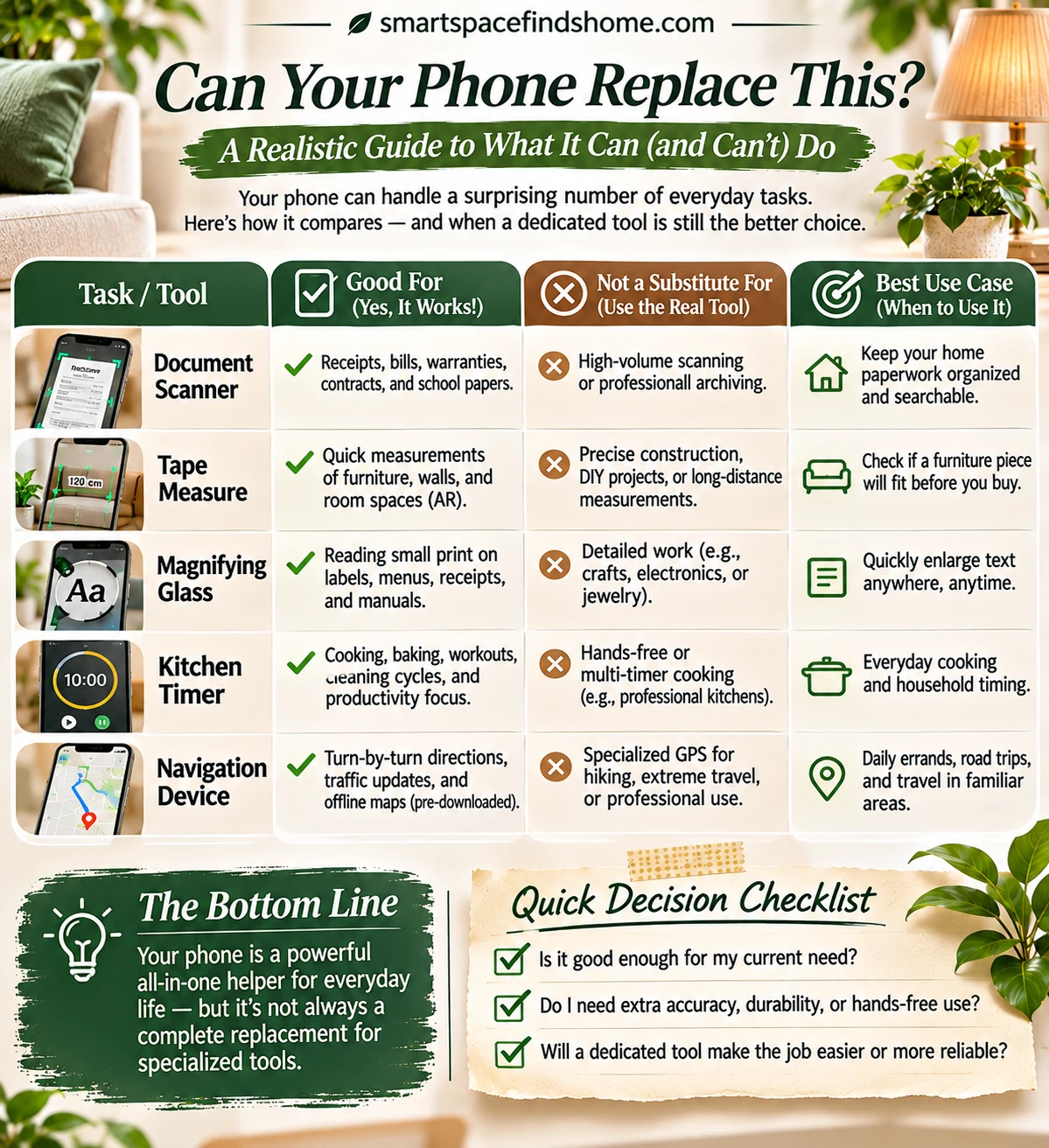
What your phone can replace—and what it cannot
Useful for: Everyday receipts and noncritical paperwork
Do not replace: Dedicated scanning for archival or specialist requirements
Useful for: Routine reminders
Do not replace: Supervision and food temperature checks
Useful for: Approximate planning
Do not replace: Precise purchase and installation measurements
Useful for: Readable everyday labels
Do not replace: Professional interpretation of unclear safety information
Useful for: Downloaded maps for supported journeys
Do not replace: Emergency preparedness or guaranteed connectivity
Keep simplifying your everyday routine
- Hidden features in everyday things you already own
- Simple ways to refresh your daily routine
- Functional desk setup ideas
- Small inventions that solve everyday problems
Frequently asked questions
What useful things can I do with my phone for free?
Many phones include document scanning, timers, reminders, camera zoom and notification controls. Some features require a compatible free app or newer operating system.
Can my phone replace a tape measure?
It can estimate dimensions with compatible software, but use a physical tape measure for purchases, construction and installation.
How can I scan documents without paying for an app?
Try Notes on iPhone or Files by Google or Drive on Android. Review the resulting PDF and store sensitive files securely.
Why can I not find a feature on my phone?
Manufacturer, operating system, hardware and regional differences matter. Search your settings or consult your device’s official help documentation.
How can I make my phone less distracting?
Choose a short Focus or Do Not Disturb window, allow important contacts and pause unnecessary notifications. Test the setup before relying on it.
Do I need an expensive smartphone to use these tools?
No. Basic camera, clock, notes and reminder functions are available on many older devices. AR measurement, advanced recognition and some accessibility features may require newer hardware.
Can these phone tools work without internet access?
Timers, local notes and camera zoom generally work offline. Download supported maps and translation languages ahead of time. Cloud syncing and online visual search may require a connection.
Is it safe to keep receipts and household records on a phone?
Use a strong screen lock, trusted storage and a secure backup. Avoid uploading sensitive information to unfamiliar scanning services, and retain originals where required.
Make technology earn its place
The smartest phone setup is not the one with the most apps. It is the one that quietly removes a little friction from the life you already live. Choose one tool today, give it a real job and keep it only if it helps.
Editorial note: Menu paths were researched using Apple Support and Google Help documentation and independent technology guides. Availability varies; instructions were not hands-on tested across every model.